If you work with data long enough, you reach a point where spreadsheets stop being enough. Someone asks for “the same report, but for last month,” then “the same report, but by region,” then “can we see this every morning without emailing you?” That is usually the moment you start looking for a proper dashboard tool.
I have spent a good amount of time building dashboards in Apache Superset, and I want to share what I have learned in plain language. This is not the official documentation rewritten. It is the stuff I wish someone had told me when I started: how the pieces fit together, where people usually get stuck, and the small habits that make dashboards faster and easier to maintain.
By the end of this article, you should understand what Superset is, how to go from a raw database to a working dashboard, and how to avoid the common mistakes that make dashboards slow, confusing, or wrong.
What Is Apache Superset?
Apache Superset is a free, open source tool for exploring data and building dashboards. It started as an internal project at Airbnb around 2015 and later became a top level project under the Apache Software Foundation. Today it is used by companies of all sizes, from small startups to large enterprises.
Think of it as an open source alternative to tools like Tableau, Power BI, or Looker. The main differences are:
It is free. You host it yourself, so there is no license cost per user. You do pay for the server and the time to maintain it.
It is SQL first. Superset assumes your data lives in a database and that you are comfortable writing at least some SQL. You can build many charts without writing SQL, but knowing SQL unlocks almost everything.
It runs in the browser. Once it is set up, your team only needs a link and a login. Nobody needs to install anything on their laptop.
It connects to almost any SQL database. MySQL, PostgreSQL, ClickHouse, BigQuery, Snowflake, Redshift, SQL Server, and many more. If there is a SQLAlchemy driver for it, Superset can probably talk to it.
How Superset Is Organised
Before you build anything, it helps to understand the four main building blocks. Almost every confusion I have seen from new users comes from mixing these up.
1. Database Connections
This is the link between Superset and your actual data. You give Superset a connection string (called a SQLAlchemy URI), and it uses that to run queries. A MySQL connection string looks something like this:
mysql://username:password@hostname:3306/database_nameSuperset does not copy your data. Every time a chart loads, Superset sends a query to your database and shows the result. This is important, and we will come back to it when we talk about performance.
2. Datasets
A dataset is what your charts are built on. There are two kinds:
Physical datasets point directly at a table in your database. If you have a table called orders, you can register it as a dataset and start building charts right away.
Virtual datasets are built from a SQL query you write yourself. This is useful when the data you need is spread across several tables, or when you need to clean it up first. For example, you might join orders with customers and products, and only keep the columns you actually need.
In my experience, most real dashboards end up using virtual datasets, because raw tables are rarely shaped exactly the way a chart needs.
3. Charts
A chart is a single visual: a bar chart, a line chart, a big number, a table, a pie chart, and so on. Each chart is built on exactly one dataset. You choose the chart type, pick your metrics (what you are measuring) and dimensions (how you are grouping it), and Superset builds the query for you.
4. Dashboards
A dashboard is a page that holds many charts together, along with filters that can control them all at once. This is what your end users will actually look at.
So the flow is always:
Database connection → Dataset → Chart → Dashboard
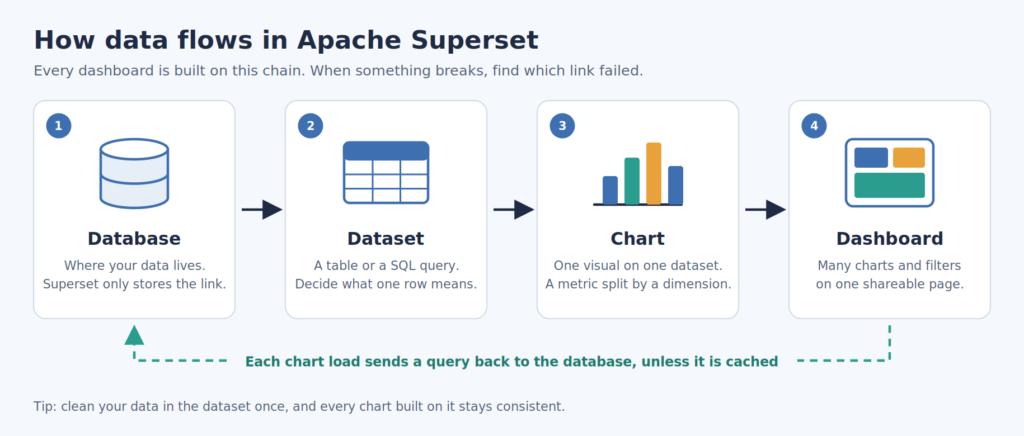
Keep this chain in your head. When something breaks, it helps to ask which link in the chain is the problem.
Getting Superset Running
There are a few ways to install Superset. I will keep this section short, because the official docs are good here and the details change between versions.
Docker Compose is the easiest way to try Superset locally. You clone the repository and run the compose file, and you get a working instance in a few minutes. This is great for learning.
pip install is the manual route. You install the apache-superset package in a Python virtual environment, then run a few setup commands:
superset db upgrade
superset fab create-admin
superset init
The first command sets up Superset’s own internal database (where it stores users, charts, and dashboards). The second creates your admin login. The third sets up the default roles and permissions.
Kubernetes with Helm is common for production setups where you need scaling and reliability.
One thing people often miss: Superset has its own metadata database, separate from the databases you analyse. By default this is SQLite, which is fine for testing but not for real use. For anything serious, point it at PostgreSQL or MySQL.
Step One: Connecting Your Database
Once you log in, go to Settings, then Database Connections, and add a new database. Choose your database type, fill in the details, and click “Test Connection.”
If the test fails, it is almost always one of these:
The driver is missing. Superset needs a Python driver for each database type. For MySQL, that is usually mysqlclient or pymysql. If the driver is not installed on the Superset server, the connection option may not even appear.
The server cannot reach the database. This is the big one. Your laptop might be able to connect to the database just fine, but the Superset server is a different machine on a different network. If the database has a firewall that only allows certain IP addresses, the Superset server’s IP needs to be on that list.
DNS issues. If you use a hostname instead of an IP address, the Superset server has to translate that name into an IP. If that translation is wrong or stale, the connection will simply time out. I once spent a good while chasing what looked like a firewall problem, and it turned out the server was resolving the hostname to an old address.
A useful trick: if you can get shell access to the Superset server, run something like nc -zv hostname 3306. If it connects instantly, the network is fine and the problem is credentials or configuration. If it hangs, it is a network problem, and you need whoever manages the servers.
Tip: Create a read only database user for Superset. Dashboards should never need to write to your production database, and a read only user protects you from accidents.
Step Two: Exploring Data in SQL Lab
Before building charts, spend time in SQL Lab. This is Superset’s built in SQL editor, and it is one of the best parts of the tool.
In SQL Lab you can:
- Browse schemas and tables
- Write and run queries
- See results instantly
- Save queries for later
- Turn any query into a virtual dataset with one click
I treat SQL Lab as my workshop. I write the query, check the numbers against what I expect, fix any issues, and only then turn it into a dataset. This saves a lot of time, because debugging SQL inside a chart is much harder than debugging it in SQL Lab.
A small habit that has saved me many times: before trusting a query, run a quick sanity check. Count the rows. Check the minimum and maximum dates. Look for nulls in important columns. If the maximum date in your data is from a year ago, your dashboard will look empty no matter how good your chart is.
Step Three: Building a Good Dataset
This is where dashboards are won or lost. A clean dataset makes charts easy. A messy dataset makes every chart a struggle.
Here is a simple example of a virtual dataset for an online store:
sql
SELECT
    o.order_id,
    o.order_date,
    c.customer_id,
    c.city,
    c.gender,
    p.category,
    o.quantity,
    o.quantity * p.unit_price AS order_value
FROM orders o
JOIN customers c ON c.customer_id = o.customer_id
JOIN products p ON p.product_id = o.product_id
WHERE o.is_cancelled = 0
A few things to notice:
There are no hardcoded dates. I do not write WHERE order_date >= '2025-01-01' inside the dataset. Date filtering should happen on the dashboard, so users can pick any range they want. If you lock dates inside the SQL, the dashboard slowly becomes useless as time passes.
Each row means one thing. In this dataset, one row is one order. This is called the “grain” of the dataset. Deciding the grain is the most important choice you make. If one row is one order, counting rows gives you the number of orders. If you accidentally join something that duplicates rows (like joining order items), your counts will be inflated and nobody will notice until someone compares with another report.
Columns are clean and ready to use. The calculation for order_value happens once in the dataset, not repeatedly in every chart.
Mark Your Time Column
In the dataset settings, make sure your date column is marked as temporal (“Is temporal”), and set it as the default datetime column. This is what makes time filters and time based charts work. If your dashboard’s date filter seems to do nothing, check this first.
Use Calculated Columns and Metrics
Superset lets you define calculated columns and saved metrics at the dataset level. For example, you can create a saved metric called “Total Revenue” as SUM(order_value). Then every chart that uses it will calculate revenue the same way.
This matters more than it sounds. If five different charts each calculate revenue slightly differently, you will eventually get a meeting where two numbers do not match and everyone wastes an hour figuring out why.
Clean Messy Values Early
Real data is messy. A “gender” field might contain “Male,” “male,” “M,” “m,” and a few blank entries. A free text field might contain spelling variations. If you chart that directly, you get a bar chart with twelve categories that should have been three.
Clean this up in the dataset with a CASE statement:
sql
CASE
    WHEN LOWER(TRIM(c.gender)) IN ('male', 'm') THEN 'Male'
    WHEN LOWER(TRIM(c.gender)) IN ('female', 'f') THEN 'Female'
    ELSE 'Other / Not Recorded'
END AS gender_clean
I like the whitelist approach: list the values you know and trust, and put everything else into a clear “Other” bucket. That way, unexpected values do not quietly create new categories on your charts.
Step Four: Building Charts
Now the fun part. Open your dataset, choose “Create Chart,” and pick a chart type.
Choosing the Right Chart
A few simple rules I follow:
- Big Number: For a single key figure, like total orders this month. Add a trendline if you want to show direction.
- Bar Chart: For comparing categories, like revenue by city.
- Line Chart: For trends over time.
- Pie Chart: Use sparingly. Only for a small number of parts making up a whole, ideally three to five slices.
- Table: When people need exact numbers, or when you have many categories.
- Pivot Table: For comparing two dimensions at once, like category by month.
If you are not sure, a bar chart or a table is usually the safe choice. Fancy charts look nice in screenshots but are often harder to read.
Metrics and Dimensions
Every chart asks two questions:
- What are you measuring? This is the metric. Count of orders, sum of revenue, average order value.
- How are you splitting it? This is the dimension. By city, by category, by month.
Once you get used to thinking in these terms, building charts becomes very quick.
Formatting Numbers
Superset uses D3 format codes for numbers. A few useful ones:
,dgives whole numbers with commas, like 12,345,.2fgives two decimal places, like 12,345.68.1%gives percentages, like 45.3%
One trap here: .1% multiplies your number by 100. If your SQL already calculated a percentage (for example, 45.3), using .1% will show 4530.0%. In that case, use ,.1f and add a “%” in the axis label or title instead.
The Sorting Headache
Sorting is one of the most frustrating parts of Superset, and I want to be honest about it. Depending on the version and chart type, bar charts sometimes sort categories alphabetically even when you asked for a different order. This is especially annoying for things like days of the week or age groups, where alphabetical order makes no sense.
A few workarounds that have worked for me:
- Prefix labels with numbers, like “01. Monday,” “02. Tuesday,” or “01-05 years,” “06-10 years.” Alphabetical order then matches the order you want.
- Use a calculated column in the dataset instead of the raw column. In some versions, this exposes sorting options that are otherwise hidden.
- Switch to a table chart when order really matters and nothing else works.
It is not elegant, but it is reliable.
Step Five: Building the Dashboard
Create a new dashboard, then drag your charts onto it. You can resize them, arrange them in rows, and add headers, text blocks, dividers, and tabs.
Layout Tips
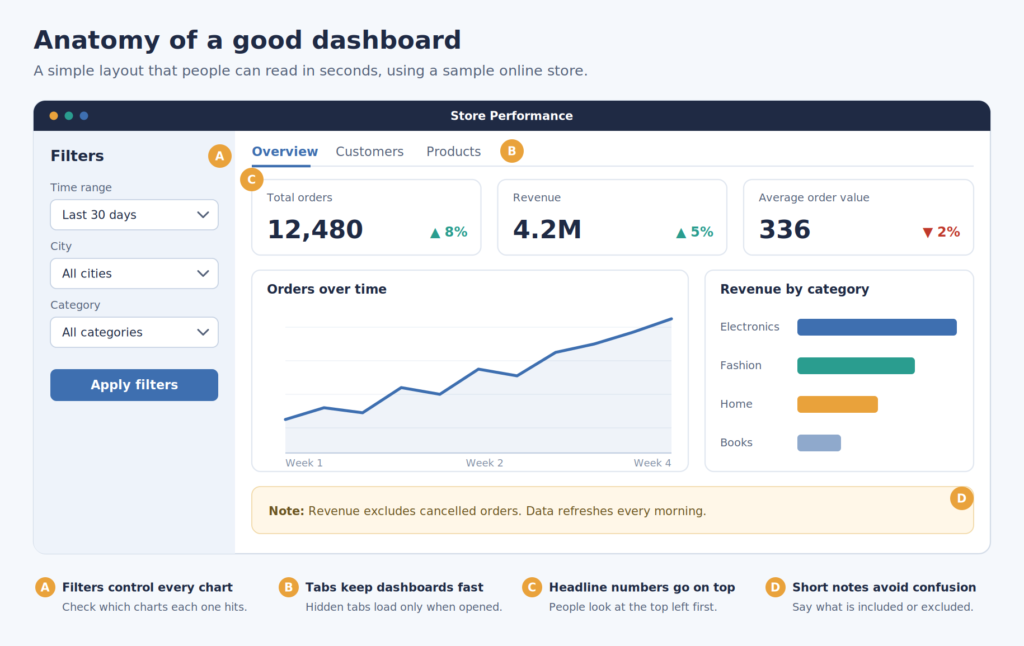
Put the most important thing at the top left. That is where people look first. Usually this is a row of big number charts showing the headline figures.
Group related charts together. If you have charts about customers and charts about products, put them in separate sections or tabs.
Use tabs for big dashboards. A dashboard with thirty charts on one page is overwhelming and slow. Splitting it into tabs helps both the reader and the loading time, because charts in hidden tabs do not load until someone opens that tab.
Add short text explanations. A small markdown block that says “Revenue excludes cancelled orders” can prevent a lot of confused questions later.
Native Filters
Filters are what make a dashboard feel alive. In Superset, you add them from the filter panel on the left side of the dashboard. Common ones include:
- Time range: Lets users pick a date range.
- Value filters: Dropdowns for things like city or category.
- Numerical range filters: For things like order value.
When you create a filter, you choose which charts it applies to. By default it may apply to all charts that use a matching column, but always check the scoping. A filter that silently does not apply to one chart is a classic source of confusion.
You can also set up dependent filters. For example, choosing a state limits the city dropdown to cities in that state. Small touches like this make dashboards much more pleasant to use.
Cross Filtering
Cross filtering lets users click on part of one chart (say, one bar in a bar chart) and have the rest of the dashboard filter to match. It is a great way to let people explore without building dozens of separate charts. It is not supported by every chart type, so test it with the charts you are using.
Step Six: Access Control
Once your dashboard is ready, you need to decide who can see what. Superset comes with some built in roles:
- Admin: Can do everything.
- Alpha: Can access all data sources and create content, but cannot manage users.
- Gamma: Limited access. Can only see data and dashboards they have been given permission to.
- sql_lab: Grants access to SQL Lab.
- Public: What anonymous (not logged in) users can see.
For most viewers, you want a Gamma style role with access to only the specific datasets their dashboard needs. A common approach is to create a custom role, like “Sales Viewer,” and give it access to just the relevant datasets and dashboards.
A few lessons I have learned:
Do not give everyone Alpha. It is tempting because it makes permission errors go away, but it means everyone can see every dataset, including ones they should not.
Be careful with SQL Lab access. Anyone with SQL Lab access can query any table the database connection allows. If your database user can see sensitive tables, so can they.
Think about personal data. If your data includes names, phone numbers, or other personal details, ask yourself whether the dashboard really needs them. Usually it does not. Aggregated numbers are enough for most dashboards, and removing or masking personal details in the dataset is much safer than trusting that nobody will look. Depending on where you work, data protection laws may require this anyway.
Row Level Security is a feature that lets you filter data based on who is looking. For example, a regional manager only sees rows for their region. It is powerful, but test it carefully, because a mistake here means someone sees data they should not.
Audit your roles now and then. Over time, people change jobs, test accounts pile up, and permissions drift. A quick review every few months keeps things clean.
Step Seven: Making Dashboards Fast
Remember that Superset does not store your data. Every chart sends a query to your database each time it loads (unless it is cached). A dashboard with twenty charts means twenty queries. If each query is slow, the dashboard is slow.
Here is how I approach performance:
1. Fix the SQL First
Most slow dashboards are slow because of slow queries. Look for:
- Joins on columns without indexes
- Subqueries that run once per row
SELECT *pulling columns nobody uses- Functions wrapped around indexed columns in
WHEREclauses, which stop the database from using the index
Run the dataset query in SQL Lab and see how long it takes. If it takes thirty seconds there, it will take thirty seconds on the dashboard too.
2. Use Caching
Superset can cache query results, usually using Redis. With caching, the first person to load a dashboard waits for the query, and everyone after that gets the cached result instantly until the cache expires.
You can set cache timeouts at the database, dataset, or chart level. For data that updates once a day, a cache of a few hours is perfectly reasonable.
3. Pre-Aggregate When Needed
If your raw table has hundreds of millions of rows, querying it live will always be slow. A common fix is to create summary tables (for example, daily totals by city and category) that are refreshed on a schedule. Your dashboard then reads the small summary table instead of the huge raw one.
4. Consider an Analytical Database
Databases like MySQL and PostgreSQL are built for transactions, not heavy analytics. For large dashboards, columnar databases like ClickHouse can be dramatically faster for the same queries. Moving to one is a real project, not a quick fix, but it is worth knowing about if you keep hitting performance limits.
5. Watch Out for Timeouts
If queries take too long, you may see timeout errors on charts. You can increase the timeout settings, but this treats the symptom rather than the cause. A chart that takes two minutes to load is a bad experience even if it technically works.
6. Never Point Heavy Dashboards at a Busy Production Database Without Thinking
Dashboard queries can be heavy. If they run against the same database your application uses, they can slow down the application for real users. For small data volumes, pointing directly at production is often fine. For bigger workloads, a read replica or a separate reporting database is safer. Just make sure that reporting copy is actually being kept up to date. A reporting database that quietly stopped syncing months ago is a very convincing way to show wrong numbers.
Common Problems and How to Fix Them
Here is a quick list of issues I have run into and what usually causes them.
The dashboard shows no data. Check the time filter first. Then check whether the underlying data actually has rows for that period. Then check whether the database connection points to the right, up to date database.
The numbers do not match another report. Compare the definitions. Are both reports excluding the same things (cancelled orders, test accounts, deleted records)? Are they using the same date column? Is one counting rows and the other counting distinct IDs? Nine times out of ten, the difference is in the definition, not a bug.
Test data is showing up. Real systems usually have demo users, test accounts, and dummy records. Filter them out in the dataset, and keep a list of known test accounts so you can exclude them consistently.
A chart shows “No results.” The query ran fine but returned nothing. Often a filter is too narrow, or a join is excluding rows you expected. Run the query in SQL Lab without filters to see what is there.
Categories appear in the wrong order. See the sorting section above.
Strange characters appear in labels. This can happen with text stored in unusual encodings or with special characters. Stick to plain characters in labels where you can, and check how your data is stored.
Every chart suddenly fails with a connection error. This is almost never a chart problem. It is the database connection or the network. Check whether the database is up, whether the Superset server can reach it, and whether anything changed on the network side, like a firewall rule or DNS record.
Best Practices I Follow
After building quite a few dashboards, these are the habits that have made the biggest difference:
Start with the question, not the chart. Before building anything, write down the questions the dashboard should answer. “How many orders did we get this week?” is a good question. “Show me everything about orders” is not.
Keep a validation checklist. When you finish a dashboard, go through each chart and check the numbers against a trusted source. I keep a simple spreadsheet with each chart, what it should show, and whether it has been checked. It is boring, but it catches mistakes before your users do.
Name things clearly. “Dataset_final_v2_new” tells nobody anything. “Orders by Customer (excludes cancelled)” tells everyone exactly what it is.
Document your definitions. Write down what each metric means and what it includes or excludes. Put short notes on the dashboard itself, and keep fuller notes somewhere your team can find them.
Build fewer, better dashboards. It is tempting to build a new dashboard for every request. Before long, you have fifty dashboards, half of them broken, and nobody knows which one is correct. Where possible, add a filter or a tab to an existing dashboard instead.
Review regularly. Data sources change. Columns get renamed. Tables stop updating. A dashboard that was correct six months ago might be quietly wrong today. Schedule a regular check, even a quick one.
Talk to your users. The people using the dashboard will tell you what is confusing, what is missing, and what they never look at. Their feedback is worth more than any design guide.
Is Superset Right for You?
Superset is a great fit if:
- Your data lives in SQL databases
- You or your team are comfortable with SQL
- You want to avoid per user license costs
- You are willing to host and maintain it yourself
It might not be the best fit if:
- Your team has no SQL skills and needs a fully drag and drop experience
- You have no one to manage the server
- You need very polished, pixel perfect reports for external clients
For many teams, especially those with technical analysts and limited budgets, Superset hits a sweet spot. It is powerful, flexible, and free, and once you understand how its pieces fit together, it becomes a very productive tool.
Final Thoughts
The most important thing I have learned about dashboards has nothing to do with Superset specifically. A dashboard is only useful if people trust it. And trust comes from getting the basics right: clean datasets, clear definitions, validated numbers, and data that is actually up to date.
Superset gives you the tools. The rest is careful, patient work. Start small, build one good dashboard, check every number, and grow from there. You will be surprised how quickly a few well built dashboards change the way your team works with data.
If you are just getting started, my advice is simple. Install Superset locally with Docker, connect it to a sample database, and build one dashboard from start to finish. You will learn more from that one afternoon than from reading any guide, including this one.